alex@customer.com
THE COMPLETE MAILERZ FLOW
Your domain email,
explained end to end.
MailerZ is hosted webmail for your domain. This guide shows how a message is received into Mail Box, stored, optionally forwarded, sent from New email or SMTP, recorded in Sent, and recovered—and where the service’s responsibility ends.
Mail Box Inbox, Sent, New email Receiving + authenticated sending One domain included free

The simplest mental model
Mail Box first. Optional forward second.
MailerZ is hosted portal webmail: Inbox, Sent, and New email in Mail Box at mail.mailerz.net. For incoming mail, your domain’s MX records point to MailerZ. Mail can stay in Mail Box, and you can also forward a copy to Gmail or Outlook.
For outgoing mail, use New email in Mail Box or connect authenticated SMTP. MailerZ sends only through verified, approved identities and records the remote result. It is not IMAP or POP.
Interactive system map
Follow one message across every boundary.
Switch between incoming and outgoing delivery. The moving envelope shows the protocol path; the evidence bar shows what you can verify in each direction.
LIVE FLOW DEMONSTRATION
Receive & forward
A sender writes to your domain. MailerZ validates the domain and recipient, accepts and stores the message, then forwards it to the destination you selected.
Domain + recipient checks
Content + delivery event
Alias, route, or catch-all
Gmail, Outlook, or other
Visible From stays alex@customer.com Forwarding-safe envelope handling Destination response is recorded
Animation pauses automatically when reduced motion is enabled.
First-time setup
From a domain name to working email in five checks.
You configure the route once, prove both directions, and then keep working in the tools your team already knows.
01
Add a domain you control
Enter the domain you want to use for email. MailerZ gives you the exact ownership-verification record to publish with your DNS provider.
MailerZ knows the request came from the domain owner.02
Connect incoming mail with MX
Publish the MailerZ MX records and remove competing MX records unless a documented split-delivery design requires them. DNS propagation may take time.
Sending servers know where to deliver mail for your domain.03
Create addresses and routes
Create sales@, support@, your.name@, or any other alias. Each address can forward to the destination inbox or team members you choose.
Every known recipient has an intentional destination.04
Connect SMTP for sending
Add the MailerZ SMTP host, port, username, and password to Gmail, Outlook, Apple Mail, Thunderbird, WordPress, or another SMTP-capable application.
Replies and new messages can use your verified domain identity.05
Run both test directions
Send one message into your domain and another out through SMTP. Confirm the destination, visible sender, authentication, and delivery result before relying on the route.
The full conversation path is proven—not just the DNS screen.Animated walkthrough
See what “accepted” actually means.
The five-stage animation follows an incoming message from the sender’s server to your destination inbox. MailerZ records the handoffs it controls so support can distinguish receiving, routing, and destination failures.
- The domain and recipient are checked before routing.
- Required message data is stored before SMTP success.
- The destination server’s response becomes part of delivery history.
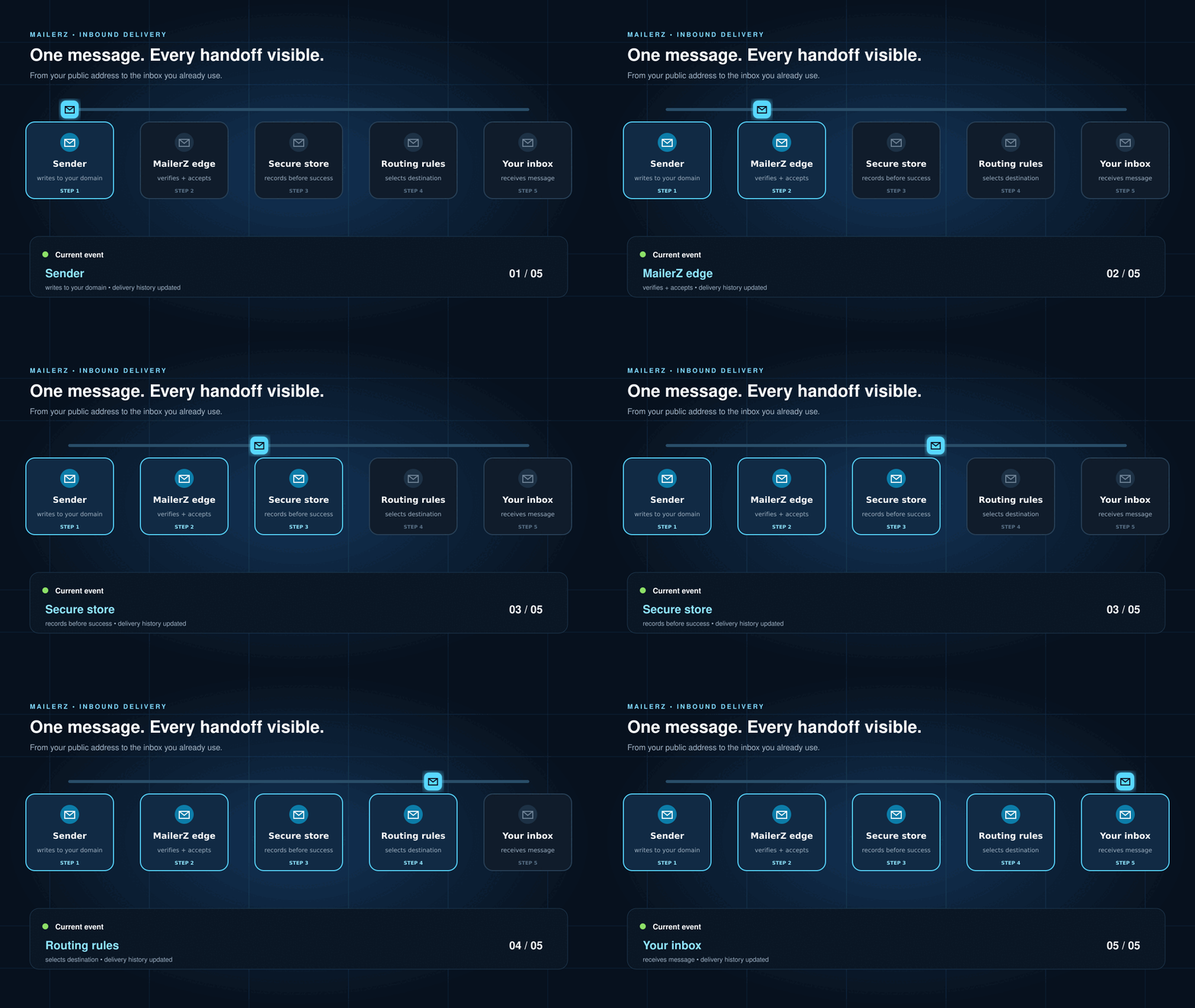
Incoming email, step by step
What happens after someone emails your domain.
The visible message and the SMTP envelope are related but different. MailerZ can prepare the envelope for safe forwarding without replacing the sender your user sees.
A sender looks up your MX records
Their mail server asks DNS where email for your domain should be delivered. Your MailerZ MX records answer that question.
MailerZ checks the receiving scope
The receiving edge confirms the domain is active, then checks the exact recipient, alias, team route, or intentional catch-all rule.
Unknown-recipient policy is applied
Known recipients continue. Unknown addresses are held or forwarded according to your plan and configuration, instead of silently becoming valid.
The message is secured before acceptance
MailerZ records the message content and required delivery metadata before returning SMTP success to the sending server.
The forwarding route is resolved
MailerZ selects the configured destination or destinations and prepares a forwarding-safe SMTP envelope while preserving the visible From header.
The destination server responds
Gmail, Outlook, your company mailbox, or another provider can accept, temporarily defer, throttle, or permanently reject the attempt.
The outcome becomes a readable event
Delivery history keeps the important handoffs and remote response visible so a missing email becomes a diagnosable event.
Outgoing email, step by step
How sending and replying use your domain.
Your inbox or application remains the composer. MailerZ provides the authenticated SMTP path and enforces which verified identity the credential may use.
View a send-as tutorialYour inbox or application opens SMTP
The sending client connects to MailerZ using the configured SMTP server and supported secure port.
The connection authenticates
MailerZ checks the supplied SMTP credential. Invalid or revoked credentials stop here; MailerZ is not an open relay.
The From identity is authorized
The requested sender must belong to an approved identity on a verified domain. A valid password does not authorize arbitrary From addresses.
Rate and policy limits are checked
Your plan’s hourly send-as allowance and responsible-use rules are applied before the message is submitted.
Authentication records support the message
Correct SPF, DKIM, and DMARC alignment help recipient systems evaluate that MailerZ is allowed to send for your domain.
The recipient server gives a result
MailerZ records whether the remote server accepted, deferred, or rejected the submission. Inbox placement is still decided by the recipient provider.
Feature map
Every capability has a practical job.
MailerZ stays focused on domain email delivery: identity, routing, forwarding, authenticated sending, operational evidence, and recovery.
Work mail in Mail Box, or forward a copy
Inbox, Sent, and New email live in Mail Box at mail.mailerz.net. You can also keep Gmail, Outlook, Apple Mail, or Thunderbird as a destination for forwarded copies. MailerZ is not IMAP or POP.
Preserve the visible original sender
Forwarded messages retain the human-facing From name and address, subject, body, and attachments so replies and filters behave naturally.
Map aliases to people or teams
Route role addresses, personal addresses, and operational aliases to the right destination without forcing every address to become a hosted mailbox.
Control catch-all behavior
Unknown mail is hold or reject on Free. Every paid plan can set unknown mail to Forward when the workflow intentionally needs it.
Reply from the same domain identity
After adding MailerZ as a send-as SMTP service, replies can leave from the same custom address that received the conversation.
Send from websites and applications
Use authenticated SMTP for legitimate person-to-person and operational messages from supported clients and applications, within plan and policy limits.
Inspect delivery history
Follow acceptance, storage, routing, destination attempts, remote responses, holds, and failures instead of guessing which system lost the message.
Recover during the retention window
Use stored content to investigate or recover eligible failed messages for 14 days on Free, 90 days on Solo through Agency, and 180 days on Unlimited. This is recovery storage, not permanent archiving.
Spot DNS configuration problems
Surface missing or competing records that can stop inbound delivery or weaken outbound authentication before users discover the problem through a lost message.
Manage domains, seats, and limits
Plan entitlements determine how many domains, aliases, seats, monthly outgoing messages, and hourly send-as operations a workspace can use.
Restrict the trust boundary
Receiving activates only for verified domains and configured recipients. Sending requires authenticated SMTP and an allowed sender identity.
Separate protocol detail from daily work
MailerZ deals with MX routing, SMTP handoffs, forwarding envelopes, authentication, and delivery evidence while users stay in familiar email tools.
Reading delivery history
One word can describe a different point in the journey.
“Accepted by MailerZ” and “accepted by the destination” are separate events. Delivery history helps you identify the last successful boundary.
MailerZ accepted and stored the incoming message. It does not necessarily mean the destination inbox has accepted the forward yet.
MailerZ is resolving the address, alias, destination list, and applicable catch-all behavior.
The destination SMTP server accepted the message. The destination provider may still place it in a tab, spam folder, quarantine, or another view.
The destination reported a temporary condition such as throttling or a 4xx response. This differs from a permanent rejection.
MailerZ retained the message for review or recovery, commonly because the recipient is unknown or the route needs attention.
A permanent policy, address, authentication, size, or provider response prevented that attempt from completing.
Clear product boundaries
What MailerZ does not claim to be.
Reliable infrastructure is easier to trust when its limits are stated before you depend on it.
Not IMAP, POP, or Workspace
Mail Box is hosted portal webmail with a plan store window. It does not host IMAP or POP, and it does not replace Gmail or Outlook as a full office suite.
Not permanent storage
Store windows are 14 days on Free, 90 days on Solo through Agency, and 180 days on Unlimited, subject to policy and account status. Keep independent backups for critical records.
Not a bulk-marketing platform
Authenticated SMTP is for legitimate personal and operational sending—not newsletters, purchased lists, cold blasts, or abusive automation.
No promise of inbox placement
Recipient filtering, reputation, content, DNS, quotas, networks, and provider outages remain outside any forwarding service’s complete control.
MailerZ controlsDomain activation, recipient rules, SMTP authentication, routing attempts, delivery evidence, plan enforcement, and recovery within retention.
You controlYour DNS changes, destination inboxes, user access, SMTP credentials, sent content, recipient consent, backups, and account configuration.
Other providers controlDNS propagation, network availability, remote SMTP policies, spam filtering, reputation signals, mailbox quotas, and final inbox placement.
Before going live
Prove the complete flow—not only the green verification badge.
- 01Confirm the domain shows verified.
- 02Confirm only the intended MX route is active.
- 03Send into every critical alias and team route.
- 04Send out from each approved identity.
- 05Check SPF, DKIM, and DMARC results.
- 06Review the recorded destination response.
- 07Document retention and backup expectations.
Continue with a task
Use the guide that matches your next screen.
Start with the documentation hubDomain, MX, aliases, catch-all, SMTP, testing, statuses, recovery, seats, and limits.Troubleshoot an observable symptomUnverified domains, missing mail, authentication failures, spam, limits, and SMTP response codes.Review the security modelVerified domains, approved identities, TLS transport, access restrictions, and operational records.
Connect one domain and verify the whole conversation.
Start free, receive in your existing inbox, add authenticated sending, and inspect the real delivery result.