Outlook send from a custom domain over SMTP is a copy-and-prove job, not a second mailbox. Outlook stays the inbox. A paid MailerZ identity sends the domain From. You copy the dashboard host, port, username, password, and TLS pair into an Outlook SMTP identity, pick that From, and prove Header From on a mailbox that is not this profile. Free has no send-as. IMAP and POP are not on the menu.

Quick answer
Outlook can send as hello@yourdomain.com without turning MailerZ into a mailbox when an authenticated SMTP server accepts that From. MailerZ is that server on paid plans. Microsoft’s own account-adding help is Microsoft Support — Add or manage email accounts in Outlook for Windows. Their device-SMTP article is about Microsoft 365 as the sender, not MailerZ — read Microsoft Learn — Send email from a device or app using Microsoft 365 so you do not paste Exchange Online values into this hop. Transport still follows IETF RFC 5321 — Simple Mail Transfer Protocol. Authentication still follows IETF RFC 7208 — Sender Policy Framework (SPF), IETF RFC 6376 — DomainKeys Identified Mail (DKIM), and IETF RFC 7489 — Domain-based Message Authentication, Reporting, and Conformance (DMARC).
This page is the Outlook identity. The Gmail wizard is a sibling article. Here you already decided inbound works. You need the composer to stop leaving as you@outlook.com or you@company.onmicrosoft.com. That is send-as, not forwarding.
MailerZ is inbound MX plus paid send-as, operated by Secuno LLC. Envelope MAIL FROM can use SRS. Header From, Subject, Date, Message-ID, body, and MIME are never rewritten. It is not Microsoft 365, not IMAP, not POP, and not an open relay. Unhosted or unauthorized send gets SMTP 550 / 550 5.7.1.
Free is one domain, ten aliases, one seat, a 14-day store, send-as Off, SMTP Off, API Off. Solo is $40 per year: 5 domains, 25 aliases, 2,500 outgoing, 20 per hour, send-as On. Starter is $8 or $80. Business is $19 or $190. Agency is $39 or $390. Unlimited is $99 or $990 with a 180-day store and 100,000 outgoing. Confirm MailerZ pricing. Limits are not an inbox SLA.
Features live on MailerZ features. The send-as product page is send and reply. The docs cover MX order if inbound is still messy. Do not open Outlook’s SMTP fields until a foreign inbound probe already landed.
The real decision
The usual mess is an Outlook profile that receives hello@brand.com and still replies as the Microsoft address. Customers see the domain inbound and a consumer or tenant From outbound. That is not a junk-mail bug. Outlook will not secretly borrow your MX to send.
A second mess is the Add account wizard. It asks for incoming server, outgoing server, and a password. People type a MailerZ host into IMAP. There is no IMAP. The wizard fails, or worse, they invent ports from a generic “Outlook SMTP settings” table and authenticate as the wrong hop.
| Question | If yes | If no |
|---|---|---|
| Does inbound already land from a foreign mailbox? | Proceed to paid SMTP. | Fix MX and leftover hosts first. |
| Are you still on Free? | Upgrade. Outlook will 550. | Copy the dashboard pair. |
| Is the From a named alias you created? | Use that exact local-part. | Create the alias. Catch-all does not mint a From. |
| Do you need Exchange admin, Teams, and a lockable store? | You may be shopping a suite, not SMTP. | Stay on Outlook plus custom SMTP. |
| Is this a newsletter blast? | Use a bulk platform. Caps will stop you. | Operational send-as is the right hop. |
A Microsoft app password is not a MailerZ SMTP password. Do not paste a Microsoft secret into the MailerZ form, and do not paste a MailerZ secret into a “less secure IMAP” story. Two hops, two credentials.
If inbound already works and the role must reply as the domain, upgrade off Free and attach the dashboard SMTP pair in Outlook.
Start free — one domainTechnical mail flow
Inbound still looks like this: a stranger writes to the alias, their server looks up MX, MailerZ accepts a hosted verified recipient, and a copy lands in Outlook. Header From stays the stranger. Envelope return path may use SRS.
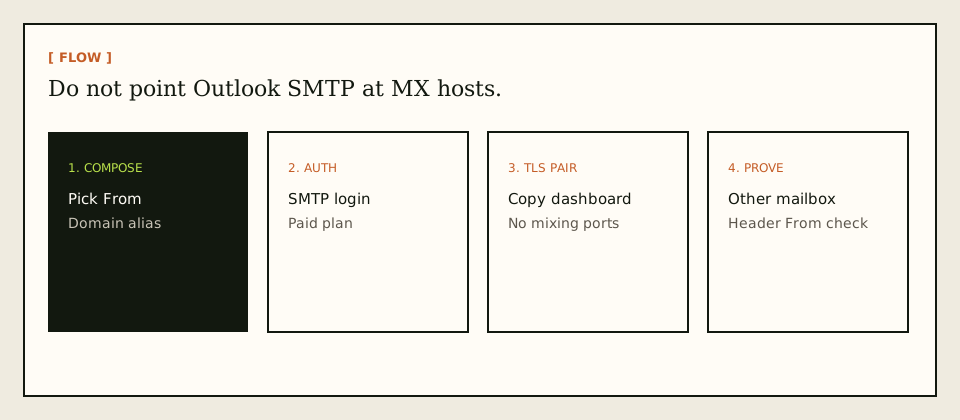
What the SMTP identity actually changes
A manual SMTP profile stores an outbound client inside Outlook. When you pick that From, Outlook opens a session to the host you typed, authenticates, and submits the message. MailerZ checks the identity, the plan, and the hourly and monthly caps. A 250 in delivery history is the hop. A sent-items copy inside Outlook is not proof the internet saw the domain.
What Outlook still controls
Outlook still stores the message, still applies Microsoft junk rules on inbound copies, and still can default the composer to the Microsoft address if you forget to pick the identity. Custom SMTP does not turn Outlook into MailerZ webmail. It does not add IMAP on your domain. MailerZ has none.
Authentication
Publish the SPF, DKIM, and DMARC values the dashboard shows. A recipient that evaluates alignment will see the domain you send as. Rewriting Header From is how other forwarders break that story. MailerZ does not rewrite Header From on inbound, and it will not let you send as an identity you did not create.
Microsoft 365 can also send as a domain it hosts. That path uses their MX and their SMTP. If leftover Microsoft MX still answers inbound, you are not on this page’s design. You are split. Delete leftover hosts before you debug Outlook AUTH.
Step-by-step setup
Inventory first. Then the identity. Then a foreign outbound probe. In that order.

Prove inbound
Send a uniquely titled message from an unrelated provider to the alias. Confirm Header From and a history row. If leftover Microsoft MX still answers, stop. The troubleshooting path is leftover MX, not SMTP.
Create the send identity
The From must be a named alias you mapped. hello@ inbound does not approve billing@ outbound. Catch-all does not mint a From.
Leave Free
Solo is the smallest send-as plan at $40 per year. Starter and above if you need more domains, aliases, seats, or outgoing. Confirm the live cards.
Copy the dashboard pair as one unit
Host, port, TLS or STARTTLS, username, password. Do not mix last year’s registrar SMTP with this month’s MailerZ password. Do not assume port 587 because a table said so.
Attach SMTP without adding IMAP
Keep the existing Outlook profile as incoming. Add or edit an outgoing SMTP identity for the exact alias. If the wizard demands an incoming server for MailerZ, cancel. You are in the wrong dialog.
Send outward to a second mailbox
Pick the domain From. Send a unique subject to an inbox that is not this Microsoft account. Read Header From. Read MailerZ history. If From is still Outlook.com, you attached the wrong host or the composer used the default identity.
Keep SMTP secrets out of tickets. Send a 550 line, a timestamp, and a Message-ID. Rotate if a secret already leaked. The docs will not ask for a password.
Classic Outlook, new Outlook, and the web
Labels move. Microsoft ships classic Outlook for Windows, a “new Outlook” shell, Outlook for Mac, Outlook on the web, and Outlook.com consumer. This page will not fake a pixel-perfect click path that dies on the next redesign. It will name the objects that stay true.
Classic Outlook for Windows
File → Account Settings is where people add a second account. That second account is often IMAP or Exchange. Do not create a MailerZ IMAP account. Look for outgoing server / more settings on the Microsoft account you already use, or an additional From that points SMTP at the dashboard host. If the only offered path is “IMAP + SMTP,” stop and use a profile that already has a real inbox, then add SMTP only.
New Outlook
The new shell hides advanced SMTP more often. If you cannot attach a custom outgoing server without inventing incoming settings, use classic Outlook, Outlook on the web connected-account tools if they still exist on your tenant, or Gmail Send mail as as the dest client instead. The hop does not care which composer you use. The hop cares that AUTH and From match.
Outlook on the web and Outlook.com
Connected accounts and “send from another address” are dest-side chrome. They still need a reachable inbound path for confirmation mail. If leftover MX ate the confirmation, the wizard dies and looks like an SMTP bug. Prove inbound first.
Microsoft 365 admin send-as
Tenant send-as and MailerZ send-as are different products. If Exchange Online owns MX, you are sending through Microsoft. If MailerZ owns MX, you are sending through MailerZ. Dual MX is split delivery, not a hybrid. Pick one inbound owner. Microsoft Learn — Send email from a device or app using Microsoft 365 describes Microsoft as the SMTP host for printers and apps. That is useful contrast. It is not this dashboard pair.
Mobile Outlook apps follow the account you already added. They will not magically grow a MailerZ IMAP folder. If the phone must send as the domain, it must use the same SMTP identity or a dest that already has Send mail as. Do not invent a third host on a hotel Wi-Fi because the phone wizard asked.
Failure modes and proof
Most Outlook custom-SMTP failures are Free, leftover MX, a mixed host/password pair, an IMAP wizard, or a self-send that never left Microsoft. Proof is a received copy plus a history row.
| Symptom | Likely cause | What to check |
|---|---|---|
| 535 or authentication failed | Wrong username, password, or host. | Copy the live dashboard pair again. |
| 550 / 550 5.7.1 | Free, unauthorized From, or open-relay guard. | Paid plan. Mapped identity. Not a guessed local-part. |
| Wizard asks for IMAP host | You are adding an account, not SMTP. | Cancel. Incoming stays Microsoft. |
| Confirmation never arrives | Inbound unproven or leftover MX. | One MX set. Foreign inbound probe first. |
| Composer still leaves as Outlook.com | Default identity or smtp.office365.com in the fields. | Pick the domain From. Dashboard host only. |
| Mid-month 550 after a good week | Hourly or monthly outgoing cap. | Plan counters. Bulk mail elsewhere. |
| Self-send looks perfect | Microsoft short-circuit. | Second provider. Expected. |
Leftover Microsoft MX is the usual ghost. Check a public lookup before you blame AUTH.
Open leftover MX troubleshootingMailerZ workflow and product boundary
MailerZ is a custom-domain delivery layer. Point MX at MailerZ. Mail for a verified domain lands in Outlook. Paid plans add SMTP. Site: mailerz.net. App: mail.mailerz.net. Operator: Secuno LLC.
- Free $0: 1 domain, 10 aliases, 14-day store, send-as Off, SMTP Off, API Off.
- Solo $40/yr: 5 domains, 25 aliases, 90-day, 2,500 outgoing, 20/hr.
- Starter $8/$80: 8 / 50 / 5 seats, 5,000 outgoing, 40/hr.
- Business $19/$190: 25 / 200 / 25, 12,000 outgoing, 60/hr.
- Agency $39/$390: 100 / 500 / 50, 20,000 outgoing, 60/hr.
- Unlimited $99/$990: uncapped domains and aliases, 180-day store, 100,000 outgoing, 300/hr.
MailerZ is not IMAP, not POP, not a suite, not an open relay, not an inbox SLA. Unauthorized send returns 550 / 550 5.7.1. Dashboard seats are operators, not Outlook logins. Related: send and reply, email forwarding, delivery recovery.
Agencies should keep one SMTP credential per client zone. Shared passwords across tenants are how one leak becomes every From. Offboard means revoke the secret and delete MX you own. Agency capacity is not a reason to skip named aliases.
Cost and alternatives
Stay on Free while inbound is the question. Pay when Outlook must leave as the domain. Solo at $40 per year is the usual one-operator door. If the team already pays Microsoft 365 per human, MailerZ is the incremental hop for extra printed names, not a seat replacement. Confirm pricing the day you buy.
Alternatives: Gmail Send mail as on the same MailerZ pair; Apple Mail with Microsoft or Gmail IMAP plus MailerZ SMTP; Exchange Online send-as if Microsoft owns MX. Registrar SMTP and “Outlook settings” tables from 2014 are not this dashboard. Compare live vendor docs. Do not invent feature parity.
Time is a line item. An IMAP wizard that never works costs more than Solo. Leftover Microsoft MX costs more than a quarterly DNS review. Budget one foreign outbound probe as part of go-live. Sent Items is not that probe.
If every person needs a hosted mailbox, Calendar, and admin, buy the suite and stop attaching custom SMTP. If two people need Outlook and twelve printed names are routes, price two Microsoft seats plus MailerZ, not fourteen mailboxes.
Worked tickets
A founder pasted smtp.office365.com into MailerZ’s fields and wondered why From stayed Microsoft. Those values send through Exchange. They copied the dashboard pair, picked the domain From, and proved Header From on a Gmail they did not own. AUTH had never been the mystery. The host was.
A contractor added MailerZ as IMAP. Outlook sat on a spinning incoming server. There is no incoming server. They cancelled the account, kept the Microsoft profile, attached SMTP only, and wrote “no IMAP” in the runbook. The next hire did not repeat it.
A confirmation message never arrived because leftover MX still pointed at Microsoft. The wizard looked broken. Public lookup showed two hosts. They deleted the leftover, waited for two views, probed inbound, then finished SMTP. Outlook was innocent.
Print the From list you will actually use. If you cannot print it, you are not ready for a bigger outgoing cap. Unlimited outgoing as marketing will not save a guessed local-part. Three named aliases on a paid Solo plan are enough to stop leaving as outlook.com on a homepage.
TLS, ports, and shared mailboxes
Copy encryption with the host. If the dashboard says STARTTLS on a given port, do not flip Outlook to “SSL” on 465 because a 2012 table said so. Mismatched TLS looks like AUTH failure. It is a handshake failure. Paste the pair again as one screenshot you do not mail to support.
Shared mailboxes in Microsoft 365 are suite objects. They can have send-as inside the tenant. That is not MailerZ SMTP. If hello@ is a MailerZ alias into a shared mailbox, inbound is the hop you already proved. Outbound still needs the dashboard pair or tenant send-as on Microsoft’s MX. Do not mix both on the same send. Pick one From path and write it down.
MFA on the Microsoft account does not replace MailerZ AUTH. Outlook may prompt for a modern Microsoft login on incoming and a separate SMTP password on outgoing. That split is correct. Collapsing them into one secret is how people rotate the wrong password and lock the inbox.
Delegates and Send on Behalf are not this hop
Microsoft 365 can let an assistant send on behalf of a mailbox the tenant hosts. That permission lives in Exchange. The From path is still Microsoft. Recipients may see “on behalf of.” MailerZ SMTP is a different object: Outlook authenticates to the dashboard host and submits a named alias as Header From. Granting a delegate on the Outlook.com or tenant mailbox does not attach that pair. Removing a delegate does not rotate the MailerZ secret.
Outlook on iOS often follows the Microsoft account only. After a profile refresh it can silently send through smtp.office365.com again even though classic Outlook on the laptop still uses MailerZ. Prove Header From from the phone the same week you attach SMTP on the desktop. If the phone left as onmicrosoft.com, the identity never made it to mobile. Do not invent a third host on hotel Wi-Fi. Confirm MailerZ pricing only if you are still on Free — a missing mobile identity is not a reason to buy Unlimited.
FAQ
- What is the safest way to send from a custom domain in Outlook?
- Keep Outlook as the inbox. Prove inbound on one MailerZ MX set. Upgrade off Free. Copy host, port, username, password, and TLS from the dashboard as one pair. Attach that pair as an SMTP send identity for a named alias. Do not add MailerZ as IMAP or POP. Prove Header From on a mailbox that is not this Outlook profile.
- Does this require a new mailbox?
- No. MailerZ is Mail Box portal webmail (Inbox, Sent, New email). It is not IMAP or POP. Outlook or Outlook.com stays the store. SMTP is an outbound hop for an approved domain From. Buy Microsoft 365 or a hosted mailbox only when you need a suite archive, not because the From must look like the domain.
- Will it work with Gmail or Outlook?
- Yes. This page is Outlook. Gmail uses Send mail as. Outlook uses a manual SMTP identity. Interface labels vary by classic Outlook, new Outlook, and Outlook on the web. Free has no send-as on any of them.
- What DNS records are involved?
- A verification TXT, one MailerZ MX set, leftover Google or Microsoft MX removed, and the SPF, DKIM, and DMARC values the dashboard shows for sending. SMTP host and port are not DNS. Copy them from the app.
- What should I test before production?
- Send inbound from an unrelated provider, then send outward through the Outlook domain From to a second external mailbox. Read Header From and delivery history. Self-send from Outlook to the same Microsoft account can hide both paths. A 550 on Free is expected.
- Can I add MailerZ as an IMAP account in Outlook?
- No. MailerZ does not offer IMAP or POP. An Outlook “Add account” wizard that asks for incoming server settings is the wrong object. Incoming stays on Microsoft. Outgoing SMTP is the only MailerZ hop you attach.
Key takeaways
- Outlook stays the inbox. MailerZ SMTP sends the domain From.
- MailerZ is not IMAP and not POP. Cancel any incoming-server wizard.
- Prove inbound, then leave Free, then copy the dashboard pair as one unit.
- Solo is $40 per year for the smallest send-as plan. Confirm /pricing.
- Catch-all does not mint a From. Use a named alias.
- smtp.office365.com is Microsoft’s hop, not this dashboard.
- Sent Items is not proof. A foreign mailbox plus history is proof.
- Self-send to the same Microsoft account can hide both paths.
Conclusion and next action
Configure Outlook to send from a custom domain by attaching paid MailerZ SMTP to an inbox you already have. Do not add a second mailbox. Do not invent IMAP. Prove inbound, copy the pair, pick the domain From, and check Header From somewhere else.
Start free to prove receive. Sign in and upgrade when the composer must leave as the domain.
Attach SMTP, keep Outlook
Start free, prove inbound, then send as the domain.
Free receives. Solo when Outlook must leave as From.
Review quarterly, or sooner if Outlook or MailerZ SMTP labels change. Author: MailerZ editorial, Secuno LLC.