Email forwarding Gmail vs Outlook is a destination decision, not a branding decision. The domain still points at one receiving layer. The inbox you already open decides how junk is filed, how send-as is attached, and which self-send tests lie. Pick the store you live in, publish one MX set, and prove both directions before anyone depends on the address.
Quick answer for email forwarding gmail vs outlook
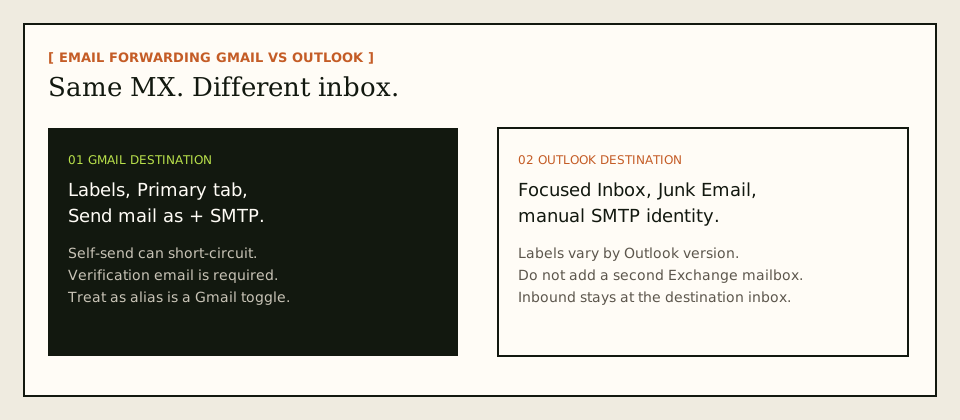
Use Gmail as the destination when that is already the archive, the search bar, and the phone app you open first. Use Outlook as the destination when that is already the archive — Outlook.com, a Microsoft 365 mailbox you already pay for, or the desktop client tied to that mailbox. Email forwarding Gmail vs Outlook does not change the public address. It changes the last hop and the outbound identity UI.
The inbound job is identical. A sender looks up MX for your domain. The forwarder accepts the message, keeps Header From as the original sender, may rewrite only the envelope return path with Sender Rewriting Scheme, and relays a copy to the destination you verified. MailerZ is one product that does that split: inbound MX plus optional paid send-as. It is not Google Workspace, not Microsoft 365, not IMAP, and not an open relay.
The outbound job is not identical. Gmail documents its client path as “Send mail from a different address.” The field labels live in Google Gmail Help — Send mail from a different address. You add the custom-domain alias, point it at authenticated SMTP, and confirm Google’s verification message. Outlook does not offer that same wizard on every build. You attach a manual SMTP identity while incoming mail stays at the destination mailbox. Microsoft’s device-and-app SMTP notes are in Microsoft Learn — Send email from a device or app using Microsoft 365. Account-adding clicks vary; start from Microsoft Support — Add or manage email accounts in Outlook for Windows and treat the labels as version-specific, not as a MailerZ screen.
Transport still follows IETF RFC 5321 — Simple Mail Transfer Protocol. Envelope commands are not the header block people see. If a forwarder rewrites the visible From, filters and replies get worse. MailerZ’s inbound rule is narrow: envelope SRS is allowed. Header From, Subject, Date, Message-ID, body, and MIME are never rewritten. If you need that distinction in product language, start with custom-domain email forwarding.
Free cannot finish the outbound half on either client. MailerZ Free is one domain, ten aliases, one seat, a 14-day store, send-as disabled, SMTP and API disabled, and unrouted mail held or rejected only. Paid plans add send-as within published hourly and monthly limits. Solo is $40 per year only. Starter is $8 monthly or $80 yearly. Business is $19 or $190. Agency is $39 or $390. Unlimited is $99/month or $990/year. Confirm numbers on MailerZ pricing before you quote them. Those numbers are plan limits, not an inbox-placement promise for Gmail’s Primary tab or Outlook’s Focused Inbox.
The user problem and the decision criteria
The usual complaint is not “which brand is nicer.” It is that customers write to a domain address, the founder lives in one inbox, and replies leave as the consumer identity — @gmail.com or the Outlook.com address — or a cheap forwarder rewrites the sender so threads look broken. Buying a full suite for one person can feel like renting a floor to store a laptop.
A second complaint shows up when teams mix clients. One person lives in Gmail. Another lives in Outlook on a laptop that also has a Microsoft 365 login. They publish MX once, then argue about why the same forwarded message sits in Primary for one person and Junk Email for the other. That argument is a destination-filter argument. It is not proof that the forwarder “broke DMARC” if Header From is intact and delivery history shows the destination accepted the hop.
A third complaint is the Outlook account wizard. Someone tries to “add the domain” the way they would add a hosted mailbox. The wizard asks for IMAP, Exchange, or Autodiscover. MailerZ will not answer those. The person concludes forwarding does not work with Outlook. The actual failure is a product-category mix-up: they tried to host mail on a delivery layer.
Decide with criteria you can test.
| Question | If Gmail is the answer | If Outlook is the answer |
|---|---|---|
| Which inbox do you already search every morning? | Map aliases to that Gmail account. | Map aliases to that Outlook / Microsoft mailbox. |
| Must recipients see the domain on replies? | Add Gmail Send mail as with paid SMTP after inbound works. | Add a manual SMTP identity after inbound works. Do not create a second hosted mailbox for the domain. |
| Do you need Calendar, Drive, or Exchange admin as the company system of record? | That is Workspace, not forwarding. | That is Microsoft 365 hosting, not forwarding. |
| Can you publish DNS and delete leftover MX? | Cutover is possible. | Cutover is possible. Same hard stop. |
| Is sending personal or operational, not bulk? | Paid MailerZ SMTP is in scope. | Paid MailerZ SMTP is in scope. Campaign mail still belongs on a campaign platform. |
Email forwarding to Gmail vs Outlook is a good fit when the domain is an identity, one consumer or existing suite inbox is the working surface, and you can tolerate published send limits. It is a poor fit when every teammate needs a managed mailbox on the domain, when legal hold requires a hosted archive you control on that domain, or when you want a forwarder to promise that Gmail will place mail in Primary or that Outlook will keep it out of Junk. No forwarder controls those last hops.
If you are still deciding whether you need a store at all, that is a different article. Forwarding keeps the inbox. Hosting replaces it. This page assumes you already chose forwarding and now need the practical differences between the two common destinations. Product surfaces for the receive path live on MailerZ features.
Pick one canonical destination per alias when you can. Two destinations are valid when two people must both see the same public address. Two MX sets are never valid. Google leftover MX next to Microsoft leftover MX next to MailerZ MX is how mail “randomly” arrives at last year’s host.
Technical mail flow
Internet mail is a sequence of SMTP conversations, not a single pipe labeled Gmail or Outlook. A sending server looks up MX, connects, offers a return path in MAIL FROM, names recipients in RCPT TO, and then transfers content. Those envelope commands are not the same object as the header block people see in either client. IETF RFC 5321 — Simple Mail Transfer Protocol is the transport standard. SPF, DKIM, and DMARC evaluate authorization; they do not file a tab. See IETF RFC 7208 — Sender Policy Framework (SPF), IETF RFC 6376 — DomainKeys Identified Mail (DKIM), and IETF RFC 7489 — Domain-based Message Authentication, Reporting, and Conformance (DMARC) if you want the protocol text.

Inbound: how a message reaches Gmail or Outlook
A customer sends to hello@yourdomain.com. Their server asks DNS for MX. If MailerZ MX is the published answer, the message arrives at MailerZ. The edge checks that the domain is verified and that the recipient matches an alias, a route, or an intentional catch-all rule. Unknown addresses on Free are held. Paid plans can forward unknown recipients when you enable that behavior. Holding unknown mail is the safer default.
MailerZ stores required content and metadata before it returns SMTP 250. Acceptance is not the same as “Gmail already has it” or “Outlook already has it.” After storage, MailerZ forwards to the destination you verified. The visible From stays the original sender. The envelope return path may be rewritten with SRS so bounce handling does not impersonate that sender. Delivery history records the destination response.
Gmail can still file the message in Spam, Promotions, or a filter. Outlook can still file it in Junk Email or the Other tab of Focused Inbox. Those are destination decisions. MailerZ can record “delivered” when the destination SMTP server said yes. Both statements can be true at the same time.
What each destination does after the hop
Gmail applies its own classifiers, labels, and conversation threading. A forwarded message with a preserved Header From often threads under the original sender, which is what people want. Gmail can still hide a legitimate hop. Self-send from that same Gmail account to the custom-domain alias can short-circuit; Gmail may never take the public MX path. That is why inbound proof must come from a different mailbox.
Outlook applies Focused Inbox, Junk Email, and rules that differ across Outlook.com, classic Outlook, new Outlook, and Exchange-backed Microsoft 365 mailboxes. The product name “Outlook” is not one engine. A rule you built in classic desktop Outlook may not exist in the web app. Junk policy on Outlook.com is not the same object as Exchange junk on a tenant. Treat “it works in Outlook” as a statement about the specific mailbox you mapped, not about every Microsoft client on the laptop.
Mobile apps add a third layer of hiding. The Gmail app can apply a category you do not see the same way on the web. The Outlook mobile app can show Focused-only by default. If a probe “failed,” expand All Inbox or disable the focused filter for the test, then look at delivery history before you change DNS.
Outbound: how send-as leaves the domain
When you reply, the client needs an outgoing server allowed to use your domain identity. On a paid MailerZ plan you create an SMTP credential: host, secure port, username, generated password, and the From address you approved. MailerZ authenticates the session, checks that the From identity is allowed, applies plan limits, and submits the message. Invalid credentials stop here. Unhosted or unauthorized recipients get SMTP 550. MailerZ is not an open relay.
In Gmail you attach that credential through Send mail as. Keep “Treat as an alias” enabled for a normal personal identity unless you have a documented reason not to. Confirm the verification message after it forwards through MailerZ. Then compose a new message and choose the domain address in the From selector. Set replies to leave from the same address the message was sent to, or you will win inbound and lose the public From on the first reply.
In Outlook you add a manual SMTP identity. Incoming mail stays at the destination mailbox. Do not let the wizard create a second Exchange or IMAP mailbox for hello@yourdomain.com that tries to fetch mail from a host that is not a mailbox host. MailerZ will not answer IMAP. People who “add an account” as if the domain were hosted mail spend an afternoon on a login that cannot exist. Interface labels vary by Outlook version; follow Microsoft’s current account article, then paste MailerZ SMTP only for outbound.
What each client stores
After a successful forward, Gmail or Outlook is the system of record for the copy you read. MailerZ recovery storage is 14 days on Free and 90 days on paid plans. That store exists so a failed hop can be inspected or retried during the window. It is not a second archive and not a compliance vault. If you need long-term legal hold, keep it in the destination mailbox or another archive you already run. Recovery and retry language lives on delivery recovery.
Vacation responders, signatures, and sweep rules live on the destination, not on MailerZ. A Gmail vacation responder replies from the Gmail identity unless you also configured send-as and told Gmail which From to use. An Outlook automatic reply uses the Outlook mailbox identity. Do not expect the forwarder to rewrite those auto-replies into the domain address. That is a client setting, and only after paid send-as exists.
Step-by-step setup and decision path
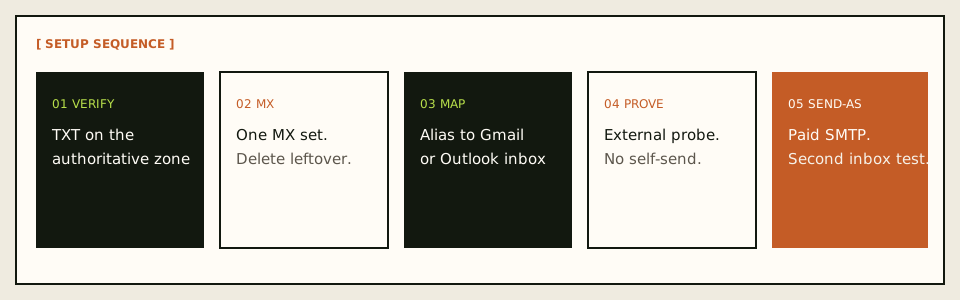
Do this in order. Skipping inbound and jumping to Gmail SMTP or an Outlook account wizard is the fastest way to waste an afternoon. The sequence is the same for both destinations until the send-as clicks diverge.
Name the destination inbox
Write down the exact Gmail address or Outlook / Microsoft address that should receive the domain. If two people need copies, that is two destinations or a shared mailbox you already operate — not two MX sets. If you need hosted mailboxes for every user, stop and buy a suite.
Add one domain you control
Use the root domain, not a mailbox and not
https://. MailerZ gives a unique verification TXT. Publish it on the authoritative nameservers. Verify in the dashboard. Receiving and sending stay off until that check passes.Create the alias and destination
Map
hello@,you@, or a role address to the Gmail or Outlook inbox you named. Complete destination verification if asked. Do not point a destination back at the same alias. Loops look like “mail vanished.”Publish MX and delete leftover MX
Copy the exact MX hosts and priorities from the dashboard. Then look at the public MX set. Old Google, Microsoft, or registrar records sitting beside MailerZ split inbound traffic. Treat leftover MX as a hard stop until those records are gone. Query from more than one resolver if you can. Propagation is a cache problem, not a progress bar.
Prove inbound from a different mailbox
Send a uniquely titled message from an unrelated provider. Open Gmail or Outlook. Confirm the visible sender is the original person, not a rewritten relay identity. Open MailerZ delivery history and read the destination response. If you email yourself from the same Gmail account, Gmail can short-circuit the path. Outlook self-send is less famous for that trick and still a bad test, because you are not proving the public MX path.
Check the destination’s hidey-holes
In Gmail, open Spam and any filter that archives on arrival. In Outlook, open Junk Email and the Other tab if Focused Inbox is on. A “missing” forward is often a classified hop, not a lost hop. Delivery history telling you the destination said 250 is the proof that the fight is now inside the client.
Upgrade only when you need send-as
Free stops here on both clients. That is intentional. When replies must leave as the domain, move to Solo or another paid plan, then create the SMTP credential in the dashboard. Copy host, port, encryption mode, username, and generated password. Do not paste your Google or Microsoft account password into that form.
Attach send-as in the client you actually use
Gmail on the web: Settings → See all settings → Accounts and Import → Send mail as → Add another email address. Enter the display name and the custom-domain alias. Use MailerZ SMTP. Confirm Google’s verification message after it forwards through MailerZ.
Outlook: add a manual SMTP identity for outbound only. Incoming mail stays at the destination mailbox. If the wizard starts asking for incoming server, IMAP, or Exchange autodiscover for the custom domain, cancel that path. You are not hosting a mailbox. Microsoft’s current account article is the click map; MailerZ supplies SMTP values, not an Outlook theme.
Send to a second external inbox
The outbound test must leave the client and land somewhere you can inspect headers. Check the visible From. Check that a reply returns to the alias and lands in the destination you mapped. Check MailerZ history for the outbound SMTP result. Inbox placement on the far side is still their filter.
| Record | Job | Failure if wrong |
|---|---|---|
| Verification TXT | Prove you control the zone | Receiving and sending stay disabled |
| MX | Tell the internet where to deliver the domain | Mail stays at the old host or bounces |
| SPF / DKIM / DMARC | Authorize MailerZ to send as the domain | Receivers treat outbound as unauthenticated |
| Leftover MX removal | Stop split delivery | Some messages never reach MailerZ |
Failure modes and proof
Most “forwarding to Gmail vs Outlook is broken” reports are leftover MX, a destination folder you did not open, a wizard that tried to create a mailbox, or a credential pasted into the wrong field. Work the evidence, not the brand loyalty.
| What you see | Likely cause | Proof to collect |
|---|---|---|
| Google cannot verify Send mail as | The alias is not forwarding yet, or leftover MX stole the verification message. | Public MX set, MailerZ history for the verification recipient, Gmail Spam. |
| Outlook asks for IMAP or Exchange for the domain | The account wizard thinks you are hosting mail. | Cancel incoming setup. Attach SMTP outbound only. MailerZ has no IMAP. |
| SMTP authentication failed | Wrong username, stale password, or encryption/port mismatch. | Re-copy all four dashboard values. Rotate the password if it may have leaked. |
| Mail sends as @gmail.com or the Outlook.com address | The client still selected the default identity or default outgoing server. | From selector on compose. Reply-from-same-address settings in that client. |
| Gmail user sees the message, Outlook user does not — or the reverse | Two destinations, or one destination plus Junk / Other / Spam. | Delivery history per destination. The missing client’s junk and rules. |
| Self-send never appears in Gmail | Gmail short-circuited a message to itself. | Repeat from a different provider. This is expected, not a MailerZ outage. |
| Some senders reach the old host | Leftover MX or cached answers. | Public MX from two resolvers. Remove obsolete records only after the intended set is live. |
| Held or 550 on send | Unknown recipient policy, unhosted domain, unauthorized From, or plan limit. | Exact SMTP response in delivery history. Plan send-as/hour and monthly outgoing counters. |
Proof is a pair of artifacts: a destination inbox screenshot or header block you sanitized, and the MailerZ event with timestamp plus remote response. Do not send SMTP passwords to support. Do not publish verification tokens. If you open a body for break-glass recovery, expect an audit row. That is a control, not a marketing badge.
Inbox placement is not proof of a correct setup, and Junk is not proof of a broken one. Gmail and Outlook can accept a message and still hide it. If you need diagnostic DNS reads, use troubleshooting and DNS diagnostics. Those tools are DNS-only. They do not grab SMTP banners or invent a score.
Mixed-client teams should map this explicitly. If both people need the same alias, add both destinations or use a shared mailbox you already own. Do not publish Google MX beside Microsoft MX beside MailerZ MX and hope the internet load-balances. It will not. It will split.
Leftover Google MX often still names Google’s hosts after someone “tried Workspace for a week.” Leftover Microsoft MX often still names Outlook or Exchange protection hosts after a Microsoft 365 trial. Both are the same class of bug. The destination inbox you prefer does not get a vote until those records are gone.
MailerZ workflow and product boundary
MailerZ is a custom-domain email delivery layer operated by Secuno LLC. Point MX at MailerZ. Mail for a hosted, verified domain can land in Gmail or Outlook. Paid plans add authenticated SMTP so the same domain can send and reply. The live site is mailerz.net. The app is mail.mailerz.net.
The send-and-reply product surface is documented on send and reply as your domain. You connect SMTP once, then choose the verified identity in Gmail or Outlook. Recipients should see the domain address, not a MailerZ mailbox, because MailerZ is not hosting a mailbox.
What MailerZ does in this workflow
- Accept inbound mail for verified domains and configured recipients.
- Preserve Header From on the forward into Gmail or Outlook.
- Hold or forward unknown recipients according to plan and settings.
- Store messages for 14 days on Free or 90 days on paid plans for recovery and evidence.
- Send through authenticated SMTP from approved identities on paid plans.
- Record delivery history for inbound and outbound hops.
- Surface leftover MX and other DNS problems as diagnostics, not as a guaranteed health score.
What MailerZ does not do
- Replace Gmail or Outlook with IMAP or webmail.
- Rewrite header From, Subject, Date, Message-ID, body, or MIME.
- Offer send-as on Free.
- Promise inbox placement, Focused Inbox behavior, uptime SLAs, or review counts.
- Claim SOC 2, ISO 27001, or HIPAA. Those certifications are not held. Controls and wording live on Security and Trust Center.
- Act as an open relay. Unauthorized send gets 550 / 550 5.7.1.
- Send newsletters, purchased lists, or cold blasts. Use a dedicated campaign platform.
- Make Outlook versions share one settings panel. Microsoft owns those labels.
Aliases are addresses and routes, not extra Gmail or Outlook seats. Catch-all is a policy, not a feature to turn on because it sounds complete. Multi-domain use is a plan-capacity question: Free is one domain. Solo is five domains; Starter, Business, and Agency raise the domain and alias ceilings. Migrations are a DNS cutover plus a two-direction test, not an IMAP export.
Cost, alternatives, and trade-offs
Workspace and Microsoft 365 pricing are per-user suite costs. Google’s current packaging lives on the Google Workspace — product overview page and changes. Microsoft’s packaging changes too. Do not treat a blog number as either vendor’s price list. The comparison that matters is economic shape: you pay per hosted user for a suite, or you pay a delivery layer while Gmail or Outlook remains the seat you already have.
| Approach | You get | You give up |
|---|---|---|
| Gmail plus MailerZ | Domain identity, Gmail search and labels, documented Send mail as, existing phone app. | No hosted mailbox, Gmail self-send tests that lie, Primary-tab placement you do not control. |
| Outlook plus MailerZ | Domain identity, the Outlook archive you already use, manual SMTP send-as. | Version-specific clicks, no IMAP on MailerZ, Junk / Focused Inbox you do not control. |
| Google Workspace | Hosted mailbox, admin, Calendar, Drive. | Per-user cost and a mailbox migration if you already live in consumer Gmail. |
| Microsoft 365 mailbox hosting | Hosted mailbox, admin, Calendar, Exchange. | Per-user cost. Do not confuse this with forwarding into an Outlook you already have. |
| Inbound-only forwarder | Cheaper receiving if send-as is out of scope. | Replies still leave as the consumer identity unless you add SMTP somewhere else. |
MailerZ Free is the right first purchase when you only need to prove inbound into either client. It is the wrong plan if the acceptance test includes “recipient sees my domain on the reply.” Solo exists for one person who needs more aliases, 90-day store, catch-all forwarding, and 20 send-as messages per hour with 2,500 outgoing per month. Starter, Business, and Agency raise domains, seats, aliases, and send ceilings. Annual Starter, Business, and Agency billing includes two months free relative to paying monthly for a year. Solo has no monthly option.
Cloudflare Email Routing is inbound routing. It is not this article’s product and it does not become MailerZ leftover-MX handling, stored failed hops, or authenticated send-as because a blog post mentioned it. ImprovMX is the closest commercial class for forwarding; compare current plans on the site rather than memory. Neither choice changes the Gmail-versus-Outlook destination facts above.
If cost is the only reason you are comparing destinations, stop. Gmail versus Outlook as a forwarded store is not a price contest. The price contest is suite-per-seat versus a delivery layer. The destination contest is which inbox you will actually operate on Tuesday morning when a customer writes.
FAQ
What is the safest way to handle email forwarding gmail vs outlook?
Pick one destination inbox you already read, publish one MX set to the forwarder, delete leftover host records, and prove inbound from a mailbox that is not the destination. Then add Gmail Send mail as or a manual Outlook SMTP identity on a paid plan. Do not add a second Exchange mailbox for the domain.
Does this require a new mailbox?
No. MailerZ is Mail Box portal webmail (Inbox, Sent, New email). It is not IMAP or POP. Gmail or Outlook remains the store. Forwarding delivers a copy into that inbox. A new mailbox is only required if you buy hosting instead of forwarding.
Will it work with Gmail or Outlook?
Yes for inbound when the destination is a verified mailbox those products already provide. Gmail uses Settings → Accounts and Import → Send mail as. Outlook uses a manual SMTP identity. Interface labels vary by Outlook version. Incoming mail stays at the destination mailbox in both cases.
What DNS records are involved?
A verification TXT, one MailerZ MX set, leftover MX removal, and the SPF, DKIM, and DMARC values shown in the dashboard if you also send as the domain. The destination provider does not need its own MX on your custom domain.
What should I test before production?
Send a uniquely titled message from an unrelated provider into the alias. Confirm Header From and delivery history. Then send outward through the custom From identity to a second external inbox. Self-send from Gmail to the same Gmail account can hide routing errors.
Key takeaways
- Email forwarding Gmail vs Outlook is a destination and send-as-UI decision. The public MX job is the same.
- Keep the inbox you already search. Do not look for IMAP on MailerZ.
- Header From stays the original sender on inbound. Envelope SRS is the rewrite that is allowed.
- Leftover MX is a hard stop. Split records lose mail in a pattern that looks random.
- Test inbound from a different mailbox. Gmail self-send lies. Outlook self-send is still a weak test.
- Gmail uses Send mail as. Outlook uses a manual SMTP identity. Labels vary by Outlook version.
- Free has no send-as. Add a paid plan before either client has a legal identity to use.
- Primary tab and Focused Inbox are destination filters, not forwarder SLAs.
- MailerZ is not SOC 2 and not a bulk sender. Quote those boundaries out loud.
Conclusion and next action
If you came here for email forwarding Gmail vs Outlook, the practical difference is narrower than forum threads make it sound. The domain still needs one MX set, leftover cleanup, and an external inbound probe. Gmail then hides mail in Spam or a tab and attaches send-as through a documented wizard. Outlook hides mail in Junk or Other and attaches send-as through a manual SMTP identity, as long as you refuse the wizard that tries to host a mailbox.
MailerZ fits when you want that split with delivery history and a recovery window you can actually see. It does not fit when you need a hosted mailbox for every user, a certified compliance report, or campaign-scale sending. Start on Free if you only need to watch inbound into the client you already use. Move to Solo or another paid plan when the From identity has to leave the building as your domain.
Next action: add one domain, create one alias aimed at the inbox you actually open, and send a uniquely titled message from a mailbox that is not the destination. When that lands, configure send-as for that client and repeat the test outward. The register path is one domain, not a suite migration.
Ready to test both directions
Start free with one domain and prove the path.
Inbound on Free into Gmail or Outlook. Paid send-as when the From identity has to travel. Sign in if the domain is already there.
Review quarterly, or sooner if Gmail’s Send mail as flow, Outlook account wizards, MailerZ plan limits, or DNS guidance changes. Author: MailerZ editorial, Secuno LLC.